
AWS Fundamentals series · Tutorial blog
Series index: AWS Fundamentals
What you will learn
By the end of this article you should be able to answer:
- What is Amazon EC2, in plain language?
- What is an instance, an AMI, an instance type, and an EBS volume?
- How does an EC2 instance move through its lifecycle (launch → run → stop → terminate)?
- How do Regions, Availability Zones, security groups, and key pairs fit together?
- How do you think about pricing so you do not get surprised by the bill?
- When should you use EC2 directly vs. a higher-level service (containers, managed databases, etc.)?
This article is general AWS education. It does not assume any particular product or company setup.
1. The problem EC2 solves
Imagine you need a computer that:
- Is always on (or can be turned on in minutes)
- Lives in a data center with good networking
- Can be bigger or smaller when your traffic changes
- You do not have to buy, rack, cool, or replace yourself
In the old world, you ordered a physical server, waited weeks for delivery, installed an OS, and hoped you guessed the right size.
Amazon Elastic Compute Cloud (Amazon EC2) is AWS’s answer: rent a virtual server in Amazon’s data centers, start it when you need it, stop or delete it when you do not, and pay mainly for the time it is running.
Official definition (paraphrased from AWS docs):
Amazon EC2 provides on-demand, scalable computing capacity in the AWS Cloud. You launch virtual servers (instances), choose how much CPU/memory/network they get, attach storage, configure networking and security, and scale capacity up or down as demand changes.
“Elastic” means capacity can stretch and shrink. You are not locked into one fixed machine forever.
2. A simple analogy
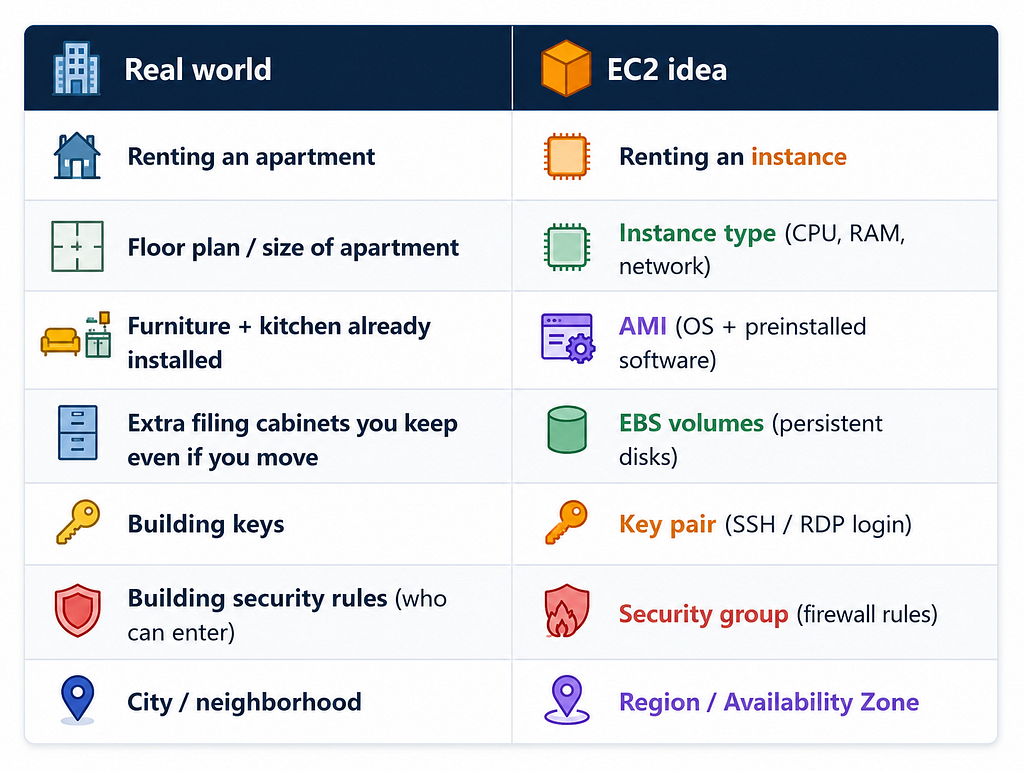
You do not own the building. You rent a unit, choose the floor plan, decide what comes pre-installed, and control who can knock on the door.
3. Big picture: where an EC2 instance sits
An EC2 instance never floats in empty space. It always lives inside AWS’s global footprint and (almost always) inside a VPC (Virtual Private Cloud — your private network in AWS). Networking is covered in depth in Part 02; here is enough to place EC2:
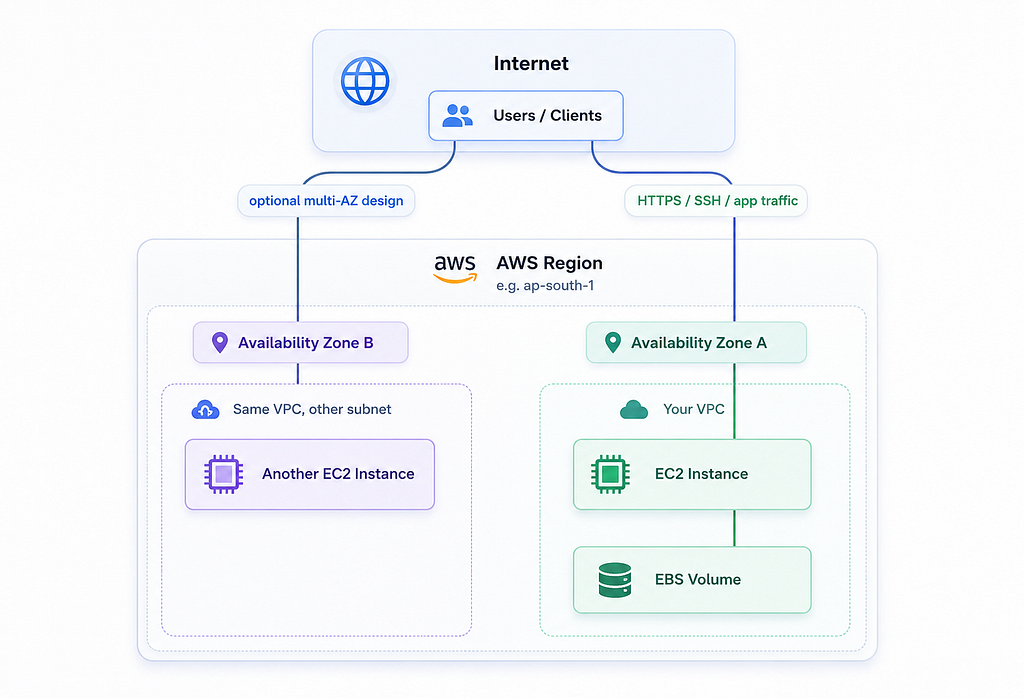
Takeaways:
- A Region is a geographic area (e.g. Mumbai, Virginia, Ireland).
- An Availability Zone (AZ) is one or more isolated data centers inside that Region.
- Putting instances in more than one AZ is how you survive a single data-center failure.
- Storage attached as EBS usually lives in the same AZ as the instance.
4. Core vocabulary (learn these first)
4.1 Instance
An instance is one running (or stopped) virtual server.
When you “launch an instance,” AWS:
- Picks physical host capacity that matches your instance type
- Boots the OS and software from an AMI
- Attaches networking (IP addresses, security groups)
- Attaches storage (usually one or more EBS volumes)
- Moves the instance into the running state when ready
You can then connect (SSH for Linux, RDP for Windows) and use it like any other computer.
4.2 Amazon Machine Image (AMI)
An AMI is a template for the root volume of an instance. Think of it as a snapshot of a disk that already has:
- An operating system (Amazon Linux, Ubuntu, Windows Server, etc.)
- Often some preinstalled packages
- Optional: your own baked-in application and config
When you launch an instance, you must choose an AMI. Common sources:
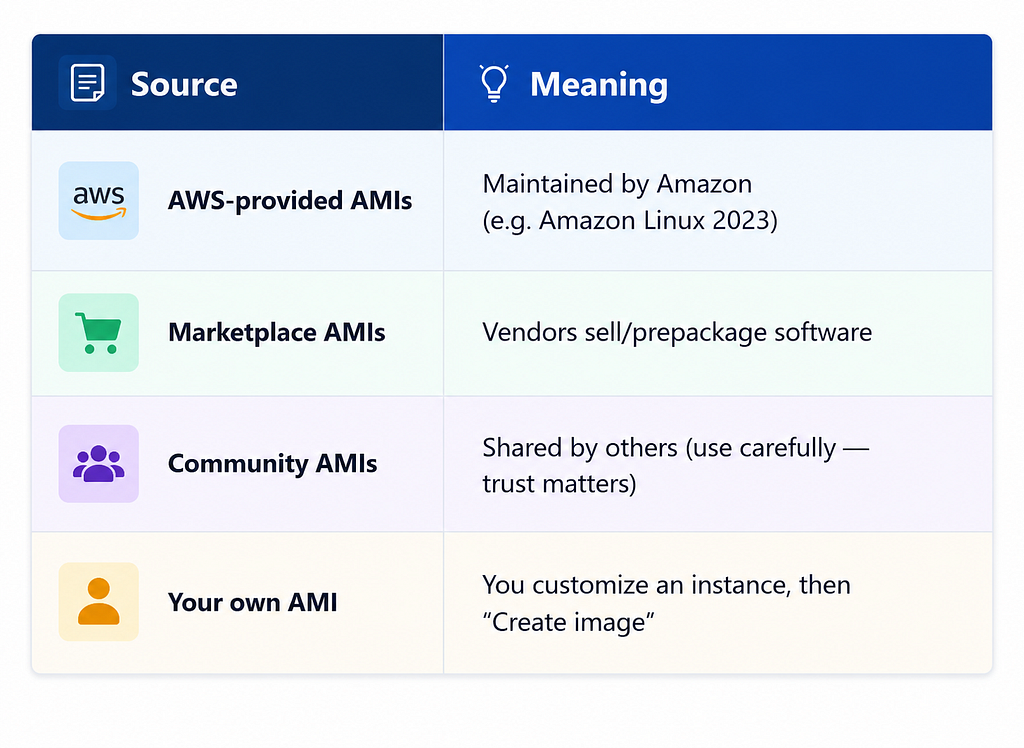
Why AMIs matter: launching from a good AMI is faster and more repeatable than installing everything by hand every time. Teams often bake AMIs with Image Builder or Packer so every new server starts identical.
4.3 Instance type
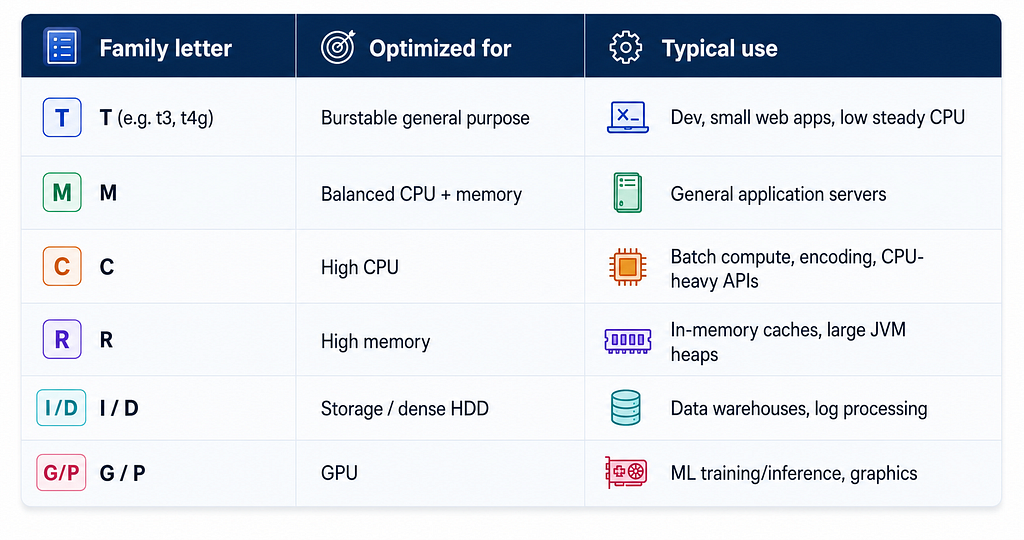
The instance type decides the hardware profile:
- How many vCPUs
- How much memory (RAM)
- Network bandwidth
- Whether there is a GPU, local NVMe disks, etc.
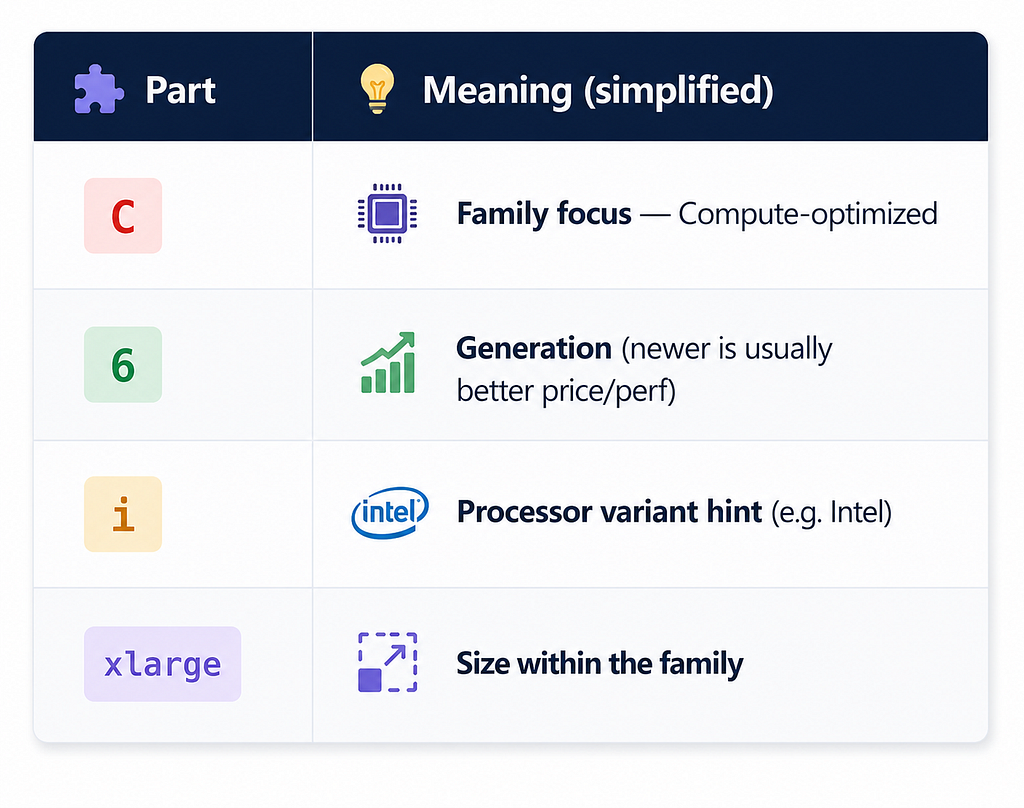
Instance types are named like t3.medium, m7g.large, c6i.xlarge.
Rough decoding of a name like c6i.xlarge:
Families (high level):
Official deep dive: Amazon EC2 Instance Types and the diagram on What is Amazon EC2? showing compute / memory / network / storage balance.
Each EC2 instance type provides a balance of compute, memory, network, and storage resources
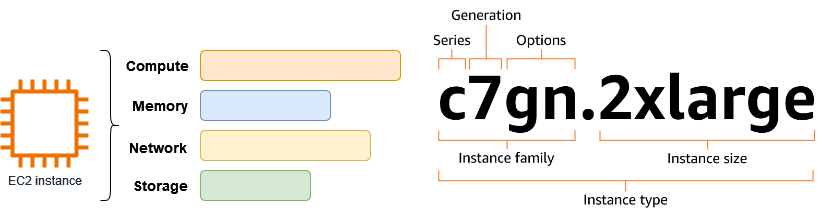
Each EC2 instance type provides a balance of compute, memory, network, and storage resources
Source: AWS documentation — What is Amazon EC2?
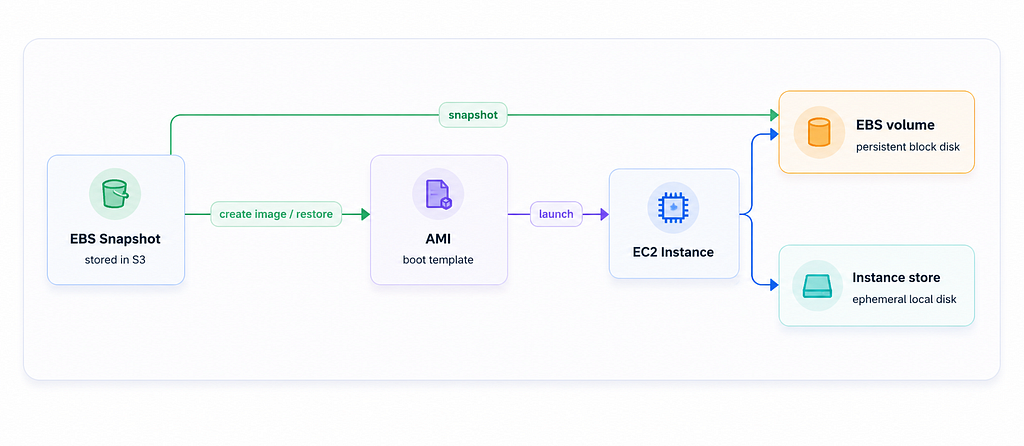
4.4 Amazon EBS (Elastic Block Store)
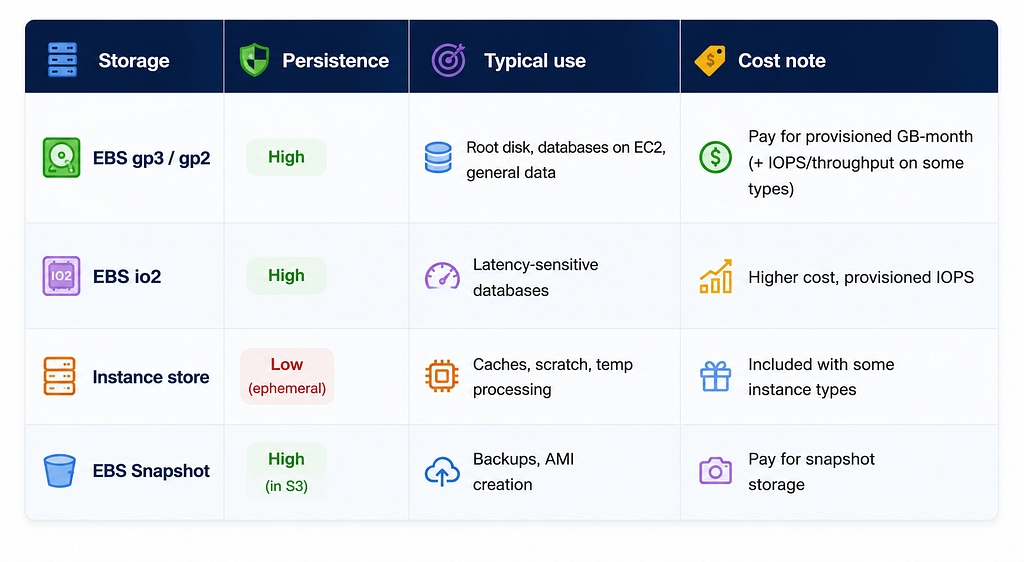
EBS is network-attached block storage — like a hard drive or SSD that lives next to your instance.
Important properties:
- Persistent: if you stop an instance, EBS data usually remains (you still pay for the disk).
- AZ-scoped: an EBS volume lives in one Availability Zone.
- Attachable: you can attach multiple volumes; you can detach and re-attach (with rules).
- Snapshotable: you can snapshot EBS to Amazon S3 for backup / AMI creation.
There is also instance store (local disks on the host). That storage is temporary — if the instance stops or the host fails, instance-store data can be gone. Use it only for scratch/cache data you can afford to lose.
4.5 Key pair
A key pair is how you prove you are allowed to log in (especially on Linux via SSH).
- AWS keeps the public key on the instance (injected at launch).
- You keep the private key safely on your machine (.pem file).
- Anyone with the private key can try to SSH in (if security groups allow it).
Modern alternative: AWS Systems Manager Session Manager — connect without opening SSH to the internet and without distributing PEM files. (Covered more in the SSM article later.)
4.6 Security group
A security group is a virtual firewall for your instance (and some other resources).
- Inbound rules: who can talk to the instance (e.g. allow TCP 443 from the load balancer).
- Outbound rules: where the instance can talk out (often “allow all” by default, but you can tighten).
Security groups are stateful: if you allow inbound traffic, the response is automatically allowed out. They are free. Misconfigured security groups are one of the most common causes of “my server is up but I can’t connect.”
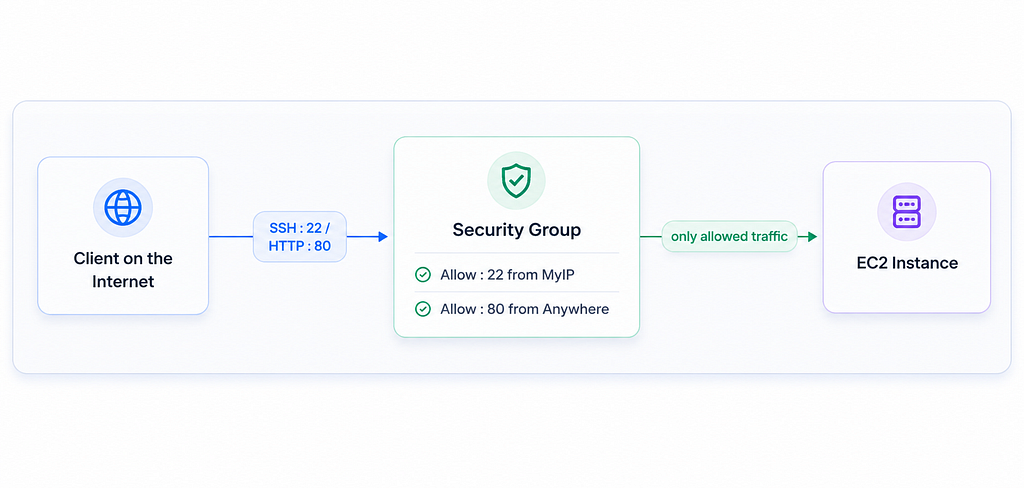
Official guide: Amazon EC2 security groups.
5. Instance lifecycle — the states that matter
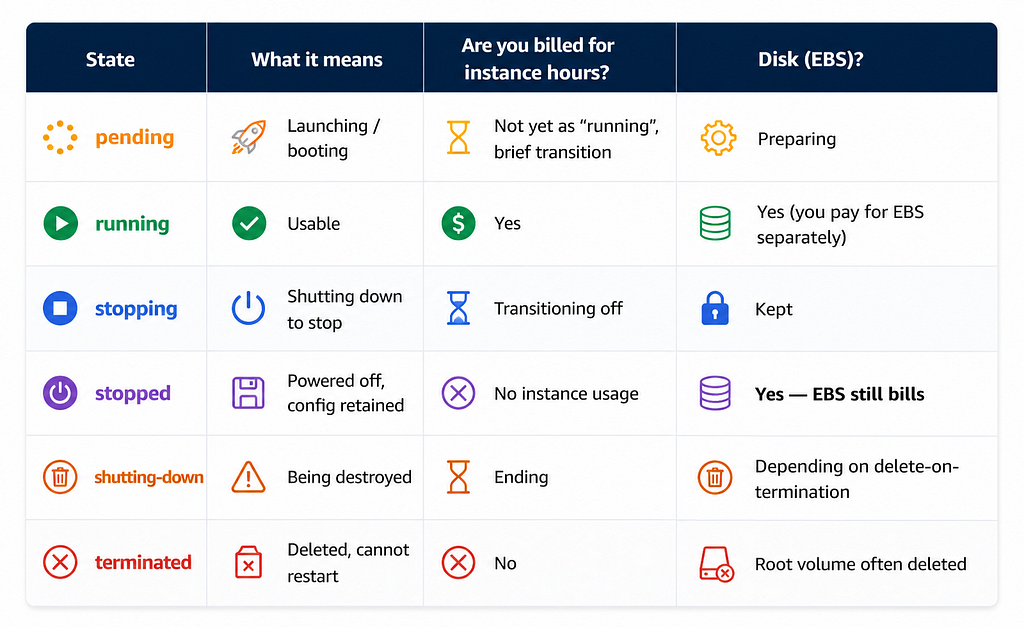
Every EC2 instance moves through states. Knowing them prevents billing surprises and debugging confusion.
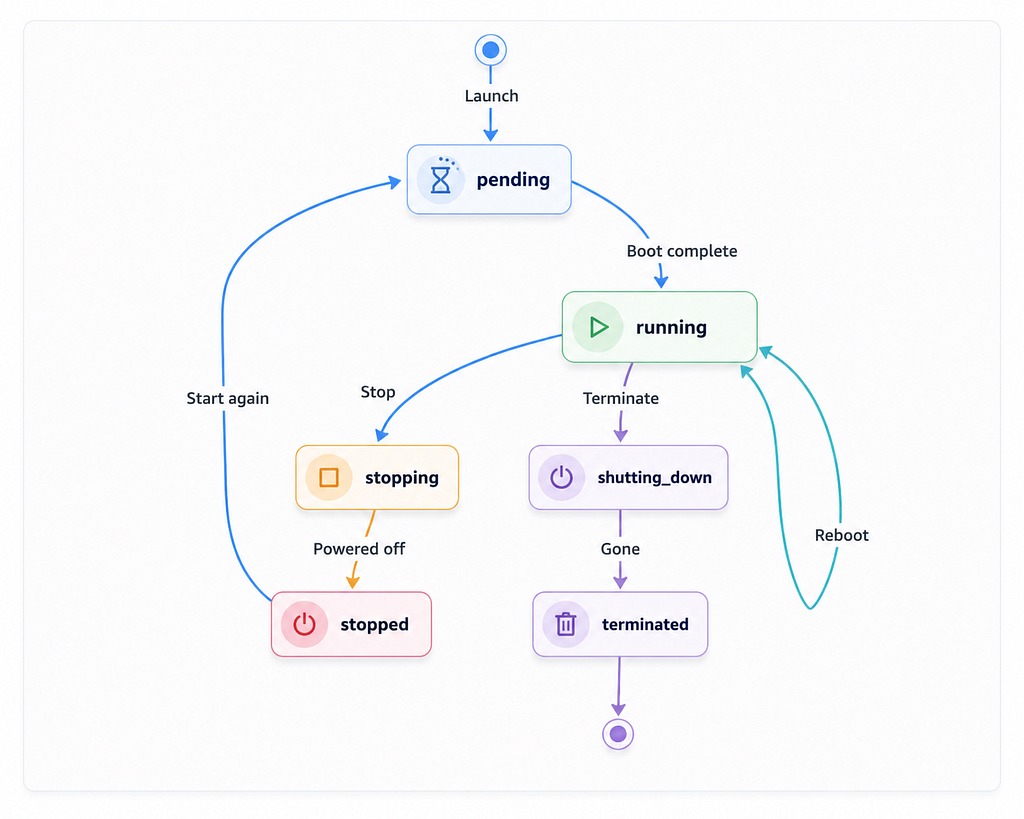
Official reference: EC2 instance state changes.
What each state means (practical view)
Stop vs reboot vs terminate
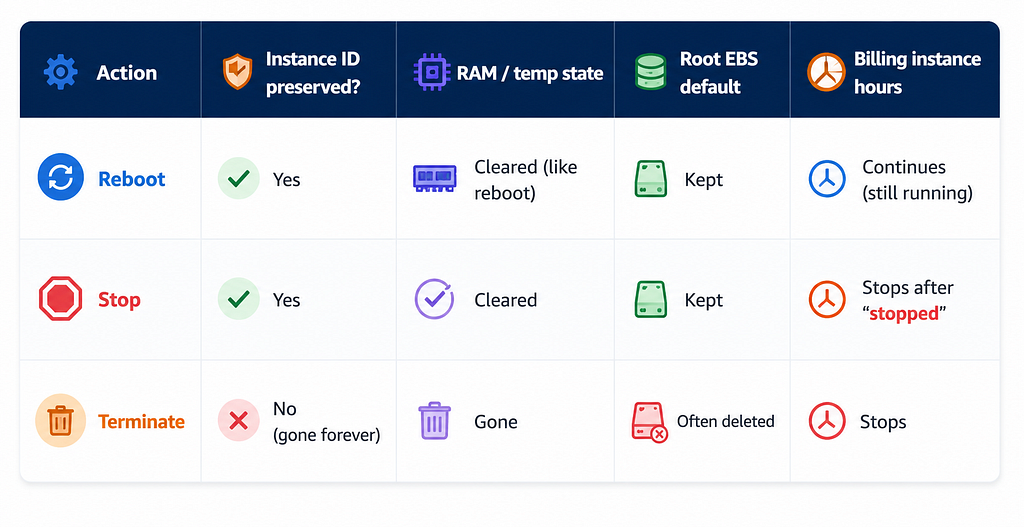
Classic surprise: people stop all instances and still see a bill — usually because EBS volumes and snapshots are still provisioned. Stopping saves compute money, not disk money.
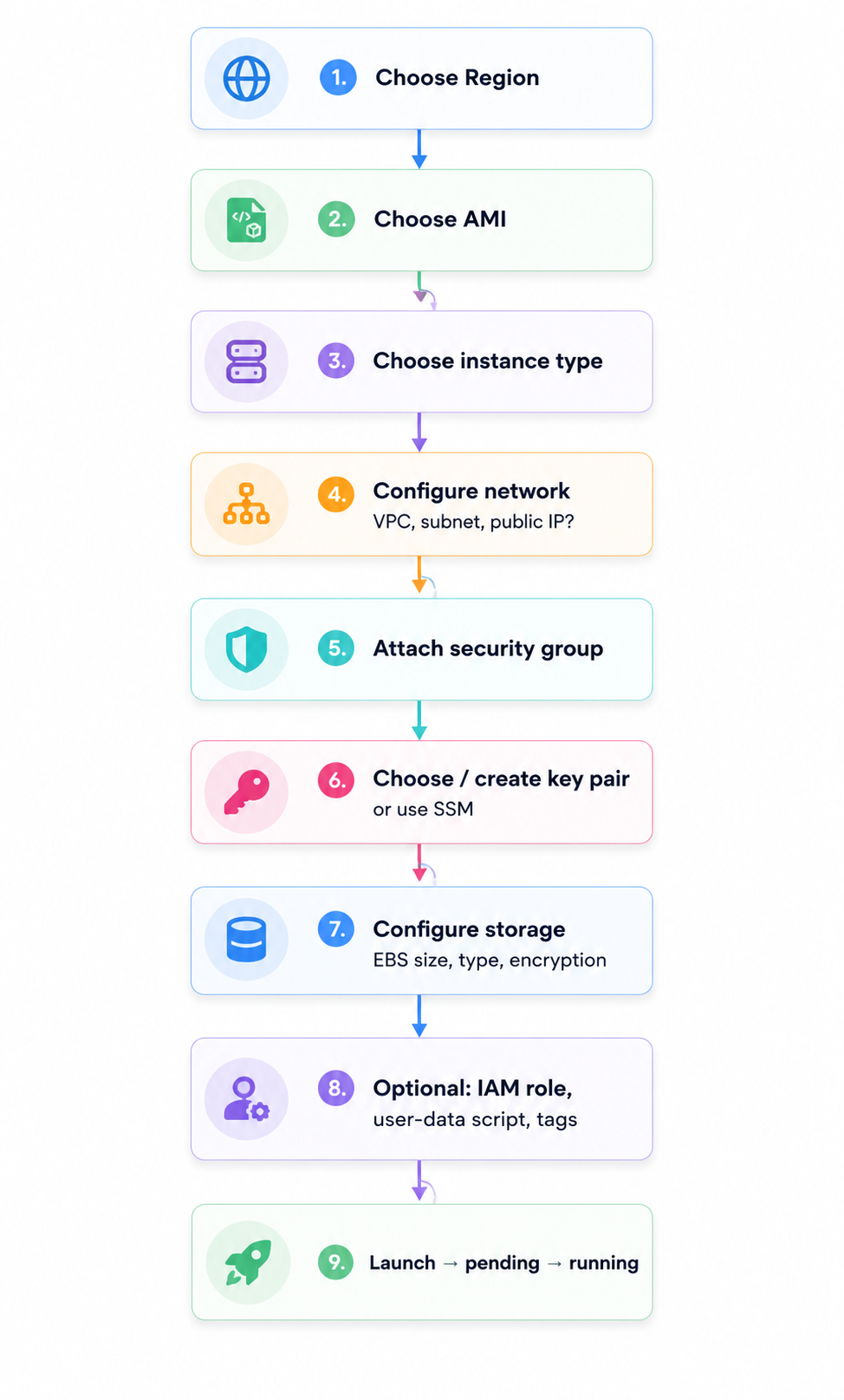
6. Launching an instance — mental checklist
Whether you use the console, CLI, Terraform, or CloudFormation, you are always choosing the same ideas:
6.1 User data
User data is a script (or cloud-init config) that runs on first boot. Typical uses:
- Install packages
- Pull an app from a repo or registry
- Register the instance with a cluster
- Write config files from environment metadata
It is powerful for automation, but for production fleets people often prefer baked AMIs + configuration management so boot is faster and more predictable.
6.2 IAM instance profile (role on the box)
Instead of putting long-lived AWS access keys on the server, attach an IAM role to the instance. The instance can then call AWS APIs (read from S3, write logs to CloudWatch, etc.) using temporary credentials. This is a foundational security practice.
6.3 Tags
Tags are key/value labels (Name=web-1, Environment=prod, Team=platform). They look optional until you need cost allocation, automation, or to find “all web servers.” Tag from day one.
7. Networking essentials for EC2 (preview of VPC)
You will go deeper in Part 02 (VPC). For EC2, remember these four ideas:
- Private IP — always present inside the VPC subnet. Used for server-to-server talk.
- Public IP / Elastic IP — needed only if the instance must be reachable from the internet directly. Many designs put instances private and expose only a load balancer.
- Subnet — a slice of the VPC in one AZ. Public subnets have a route to an Internet Gateway; private ones often use NAT for outbound-only internet.
- Security group + (optional) Network ACL — SG is instance-level stateful firewall; NACL is subnet-level and less commonly the primary control.
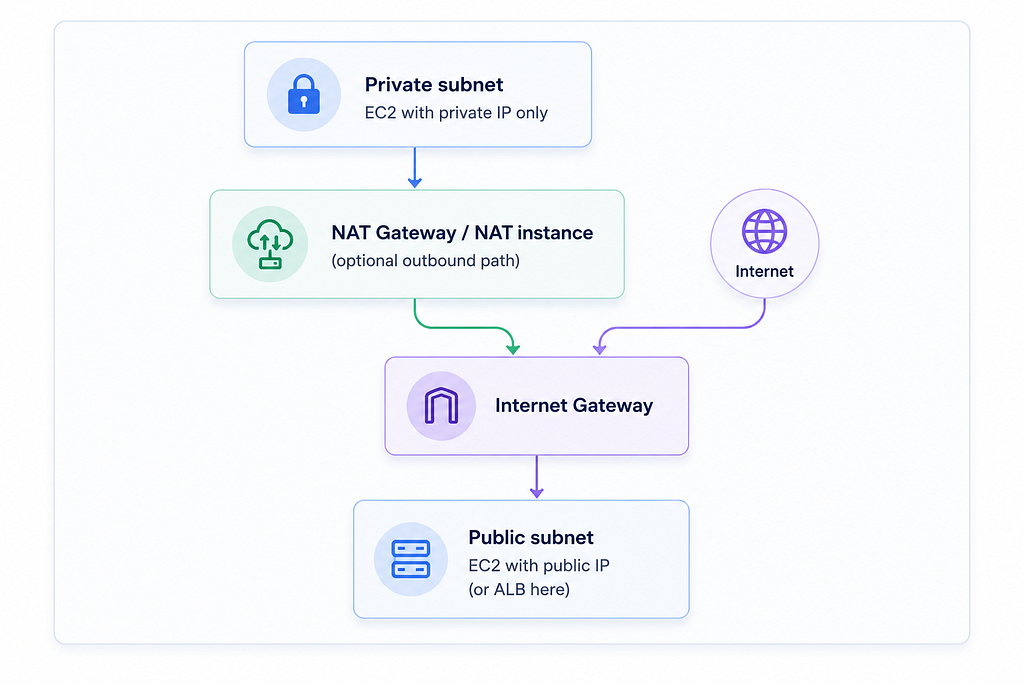
Good default habit: do not put application servers on the open internet unless you must. Prefer:
Internet → Load Balancer (public) → EC2 targets (private)
8. Storage choices in more detail
9. Scaling: one instance is not a strategy
A single EC2 instance is a single point of failure. Production systems usually add:
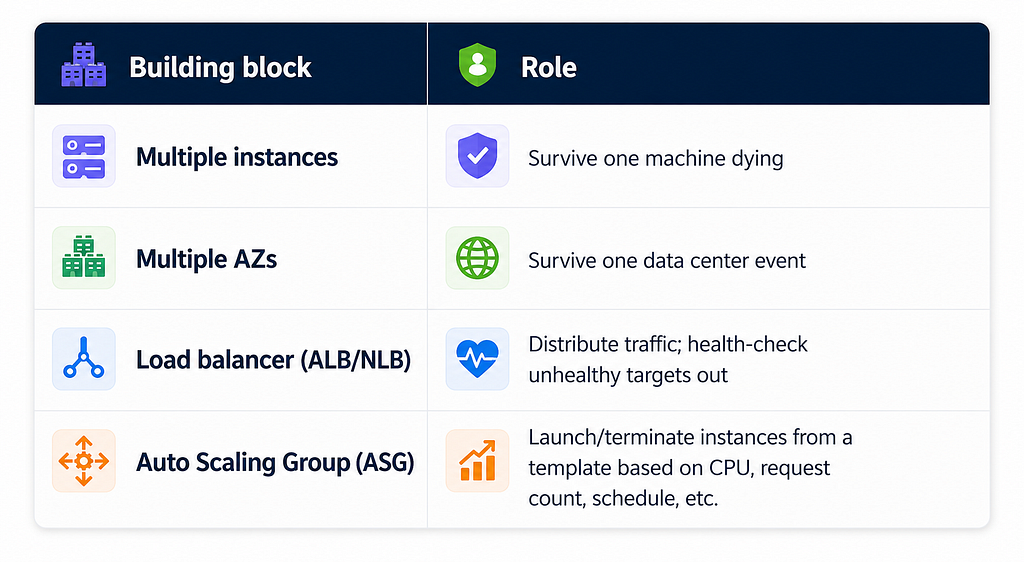
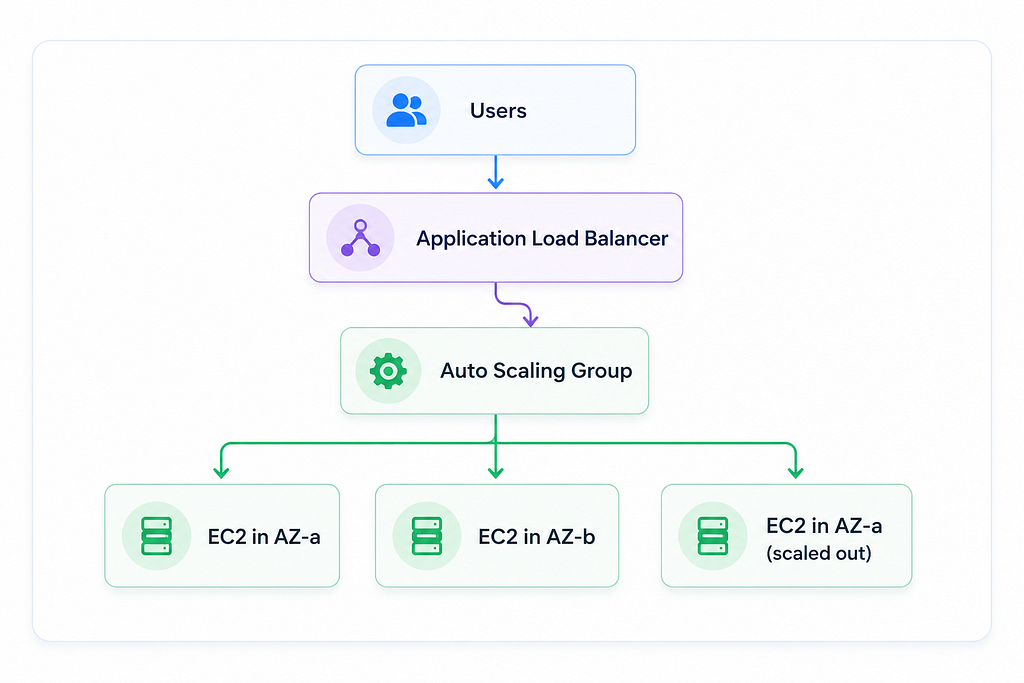
EC2 Auto Scaling does not replace application design — your app must be OK with instances appearing and disappearing (stateless where possible, externalize sessions/data).
Official overview: Amazon EC2 Auto Scaling.
10. Monitoring and operations basics
Out of the box, CloudWatch publishes basic metrics for every instance:
- CPU utilization
- Network in/out
- Disk metrics (depending on setup)
- Status checks (reachability / system)
You can install the CloudWatch agent for memory, disk used %, and custom app metrics/logs.
Status checks are especially useful:
- System status check — AWS-side host problem (often: stop/start to migrate host)
- Instance status check — guest OS / networking problem (often: reboot, fix config, or replace)
Pair metrics with alarms (e.g. CPU > 80% for 5 minutes → notify SNS / scale out).
11. Pricing mental model (not a price list)
Prices change by Region and over time. Memorize what you pay for, not today’s cents.
What usually appears on the bill
- Instance usage while state is running (per-second billing with a short minimum on modern types)
- EBS volume storage (and IOPS/throughput extras)
- EBS snapshots
- Data transfer (especially out to the internet; AZ-to-AZ and Region-to-Region also matter)
- Elastic IPs (idle Elastic IPs can cost money)
- NAT Gateway, load balancers, etc. if used alongside EC2
Purchase options (the big four)
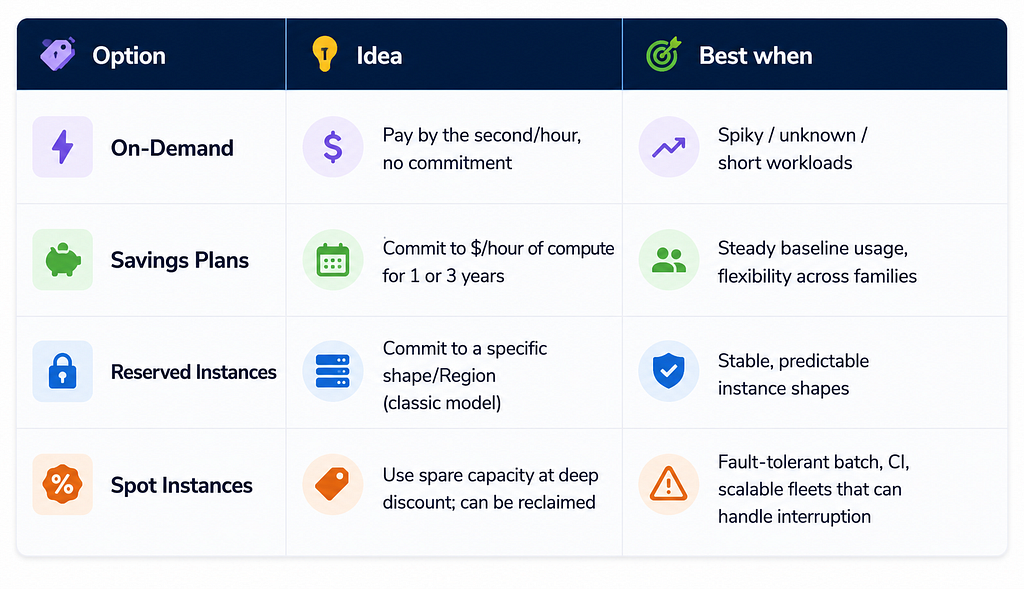
Also: Dedicated Hosts / Capacity Reservations for special licensing or capacity needs.
Free Tier: new accounts often get limited free EC2 hours/month for eligible types — check current AWS Free Tier rules; they change.
Official FAQ billing notes: Amazon EC2 FAQs.
12. How people actually use EC2 today
EC2 is the foundation under many higher-level patterns:
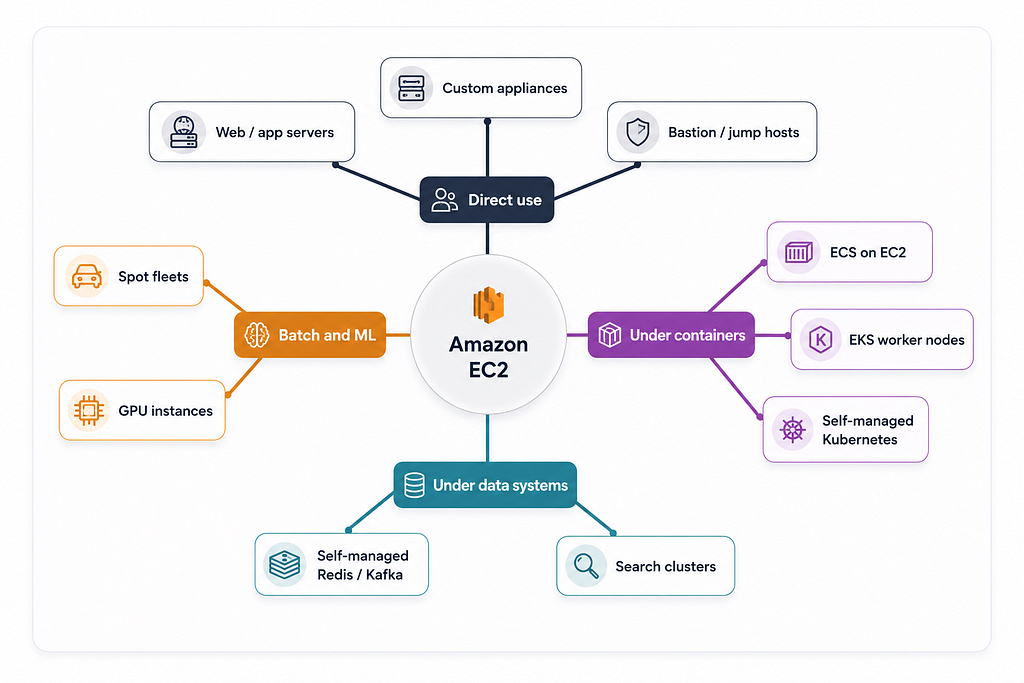
Decision hint:
- Need a full OS and custom software → EC2 (or Lightsail for simpler fixed packages)
- Need containers without managing Kubernetes → often ECS (on EC2 or Fargate)
- Need a managed database → prefer RDS / Aurora, not Postgres-on-EC2, unless you have a strong reason
- Need object files (images, backups, static assets) → S3, not a big EBS disk shared awkwardly
EC2 is powerful because it is general. That generality is also why unmanaged EC2 fleets become expensive operationally if you reinvent platforms by hand.
13. Security checklist (beginner → solid)
Use this as a pre-flight list:
- Least-privilege security groups — only required ports; prefer SG-to-SG references over 0.0.0.0/0 where possible
- No long-lived access keys on disk — use IAM roles
- Encrypt EBS (and use encrypted AMIs where required)
- Patch the OS — unattended upgrades, SSM Patch Manager, or immutable replace-from-new-AMI
- Prefer private subnets for app servers; expose via load balancer
- Turn on detailed logging / CloudTrail at the account level (org practice)
- Restrict SSH — IP allowlists, or better: Session Manager, no inbound 22
- Tags + ownership — know who owns every instance
- Terminate unused instances; delete unused volumes and old snapshots
- IMDSv2 — require Instance Metadata Service v2 to reduce SSRF credential theft risk
Security is a shared responsibility: AWS secures the cloud; you secure what you run in the cloud (OS, apps, IAM, network rules).
14. Hands-on: a minimal learning lab (optional)
If you have an AWS account and want muscle memory (use a sandbox account):
- Pick a Region close to you.
- Create a VPC with a public subnet (or use the default VPC carefully for learning only).
- Create a security group that allows SSH from your IP only (or skip SSH and use SSM).
- Launch Amazon Linux 2023, t3.micro / Free Tier eligible type if available.
- Connect, run uname -a, install nginx or a tiny Python HTTP server.
- Open port 80 from your IP, hit the public DNS.
- Stop the instance — confirm compute billing stops conceptually; note EBS remains.
- Start again — same instance ID, new public IP unless you used an Elastic IP.
- Terminate when done; delete leftover volumes if any.
Always clean up learning resources.
CLI sketch (illustrative — adjust AMI IDs / subnet IDs for your account):
# List Amazon Linux 2023 AMIs in the current region (example pattern)
aws ec2 describe-images \
  --owners amazon \
  --filters "Name=name,Values=al2023-ami-2023*" "Name=state,Values=available" \
  --query 'sort_by(Images,&CreationDate)[-1].[ImageId,Name]' \
  --output text
# Describe instance types offerings (example)
aws ec2 describe-instance-type-offerings \
  --location-type availability-zone \
  --filters Name=instance-type,Values=t3.micro \
  --output table
15. Common pitfalls
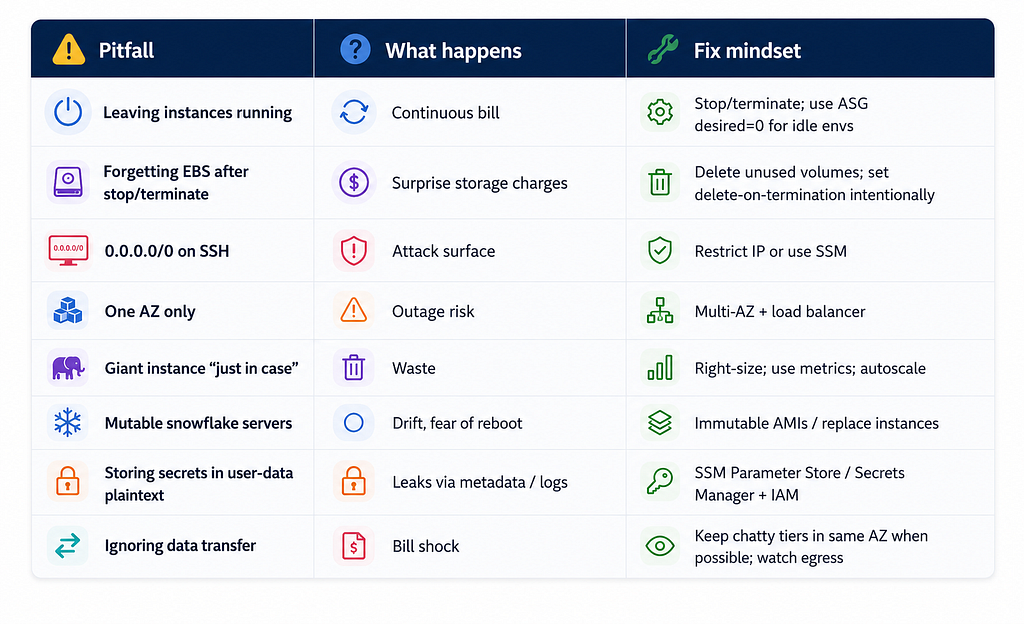
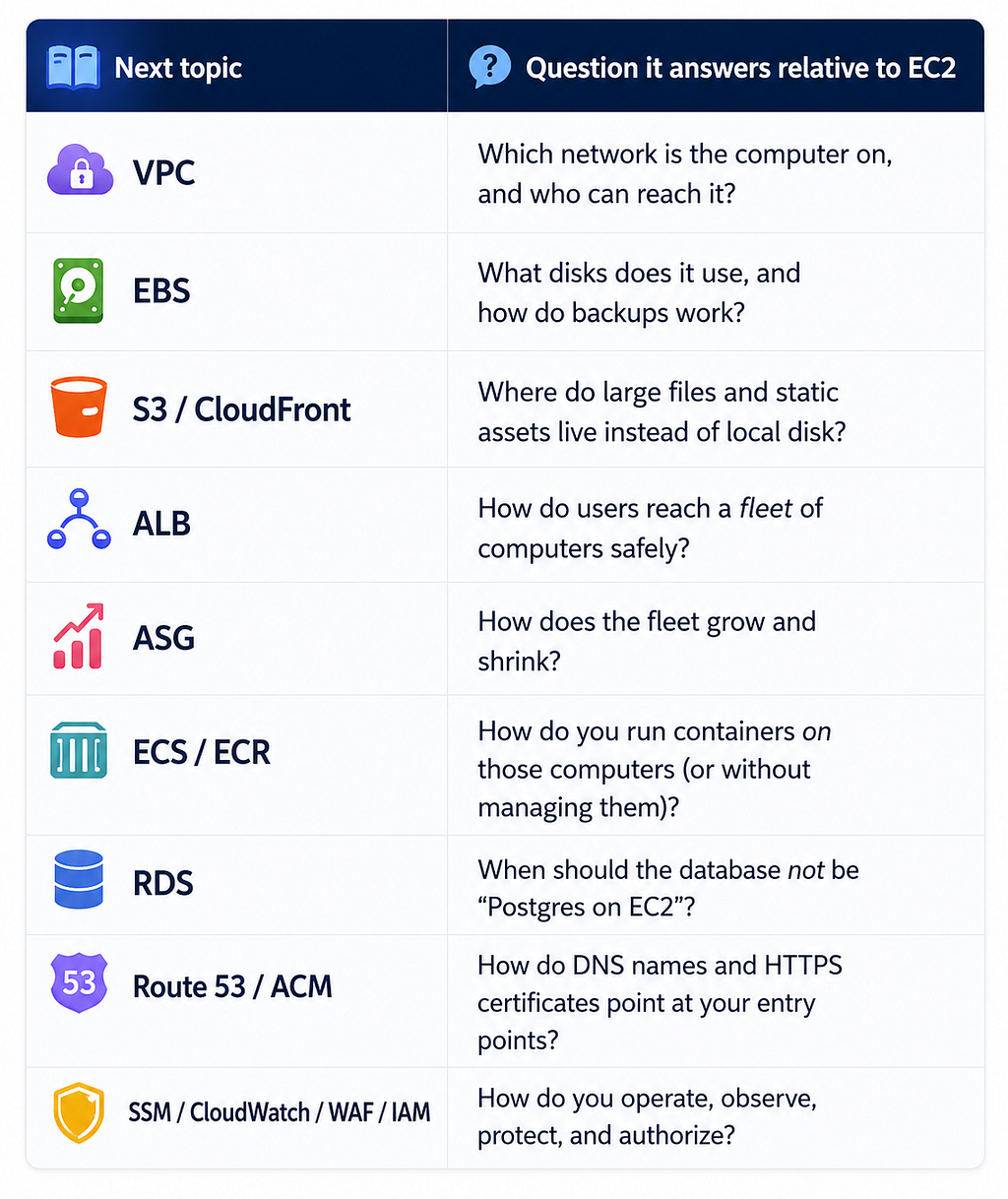
16. How EC2 connects to the rest of this series
EC2 is the “computer.” Later articles answer:
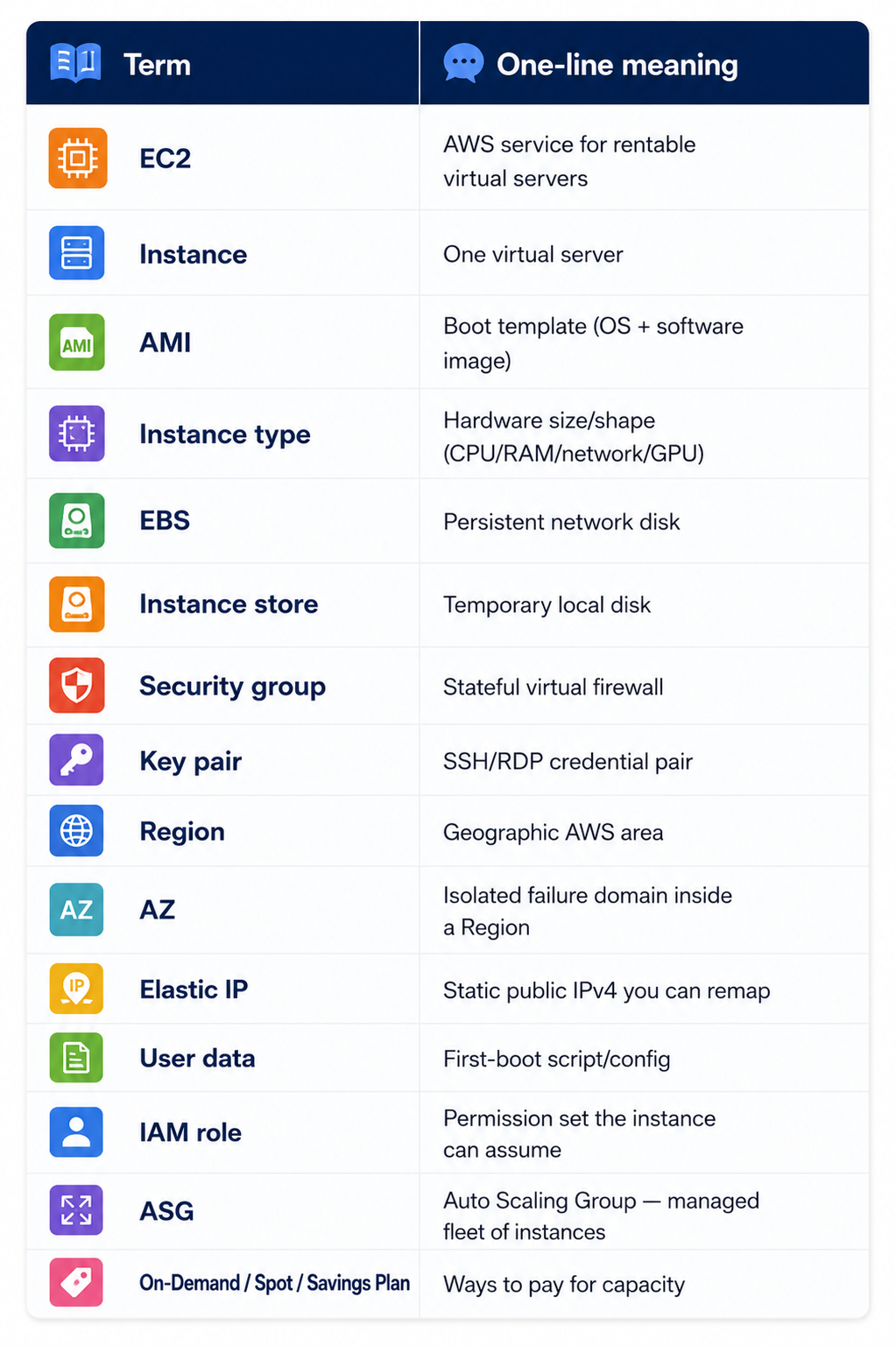
17. Quick glossary
18. Official resources (bookmark these)
- What is Amazon EC2?
- EC2 instance lifecycle
- EC2 security groups
- Instance types guide
- EC2 pricing
- EC2 FAQs
- Getting started with EC2
- AWS Architecture Icons — for drawing your own diagrams
- AWS Skill Builder — free/paid learning paths
19. Summary
Amazon EC2 gives you virtual servers on demand. You choose an AMI (what boots), an instance type (how powerful), networking and security groups (who can talk to it), and EBS storage (what persists). Instances move through clear states; running costs compute money, stopped usually still costs disk money, terminated means gone.
EC2 is the foundation under many AWS architectures — sometimes used directly, often used underneath containers, data tools, and autoscaled fleets. Master the vocabulary in this article and every later service (ALB, ECS, ASG, …) will click faster.
Next: Part 02: Amazon VPC
Back to series index → AWS Fundamentals